The board
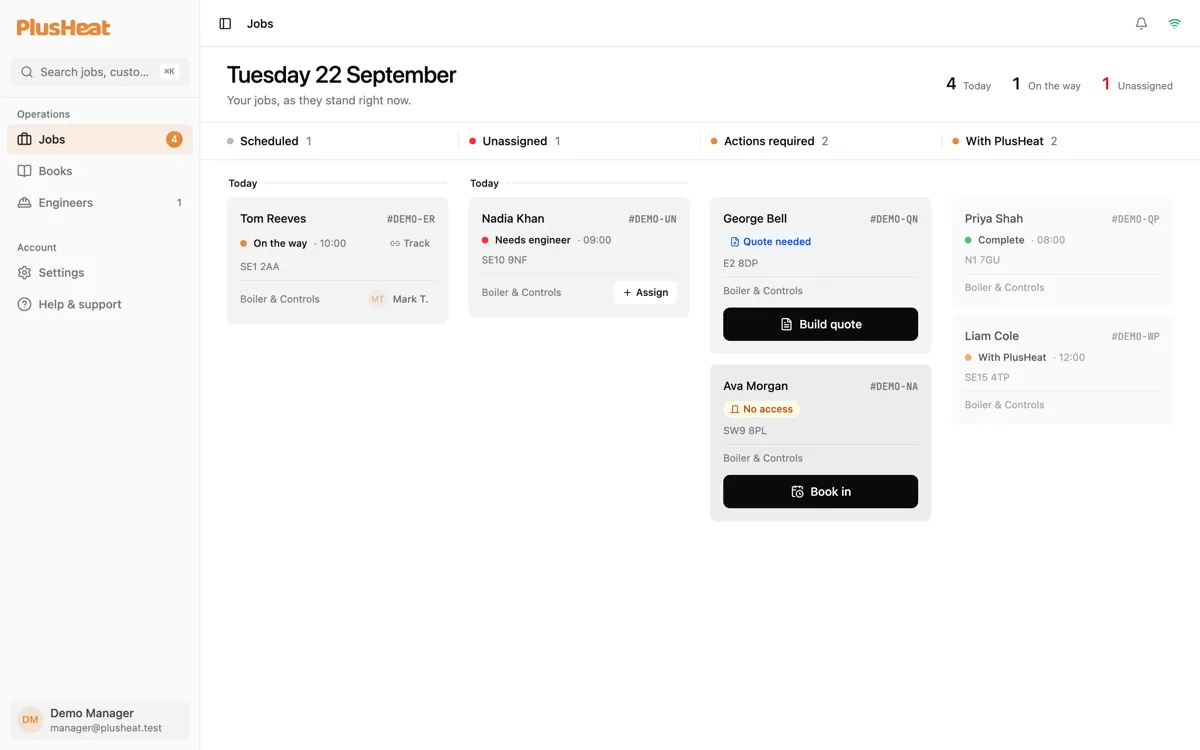
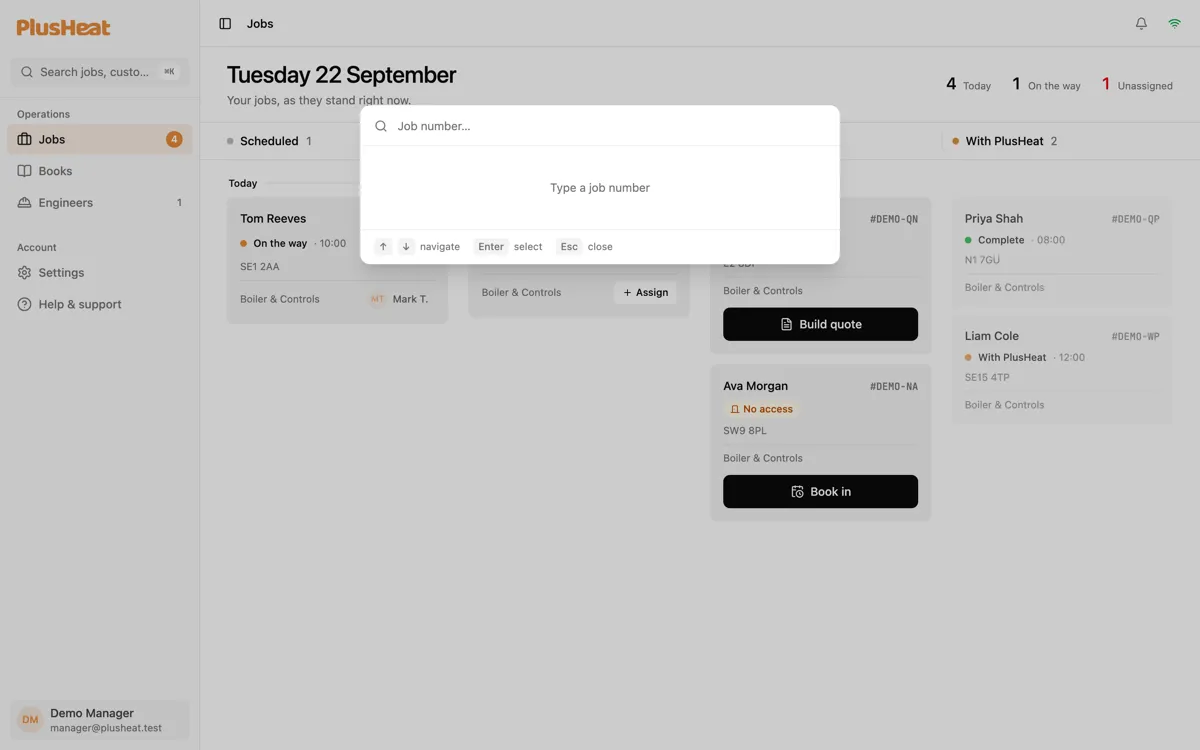
Jobs is where you’ll spend most of your time. Every live job your company holds, in four columns, sorted by what needs to happen next.
The four columns
Section titled “The four columns”| Column | What’s in it | What you do |
|---|---|---|
| Scheduled | Jobs with a date and an engineer, grouped by day. | Nothing — they’re on track. Watch the status dot. |
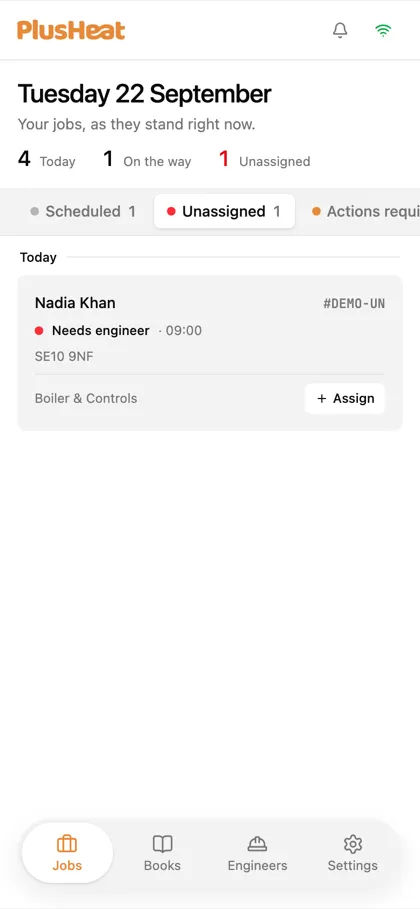
| Unassigned | Jobs you’ve accepted that have a date but no engineer. | Assign someone. See Assigning an engineer. |
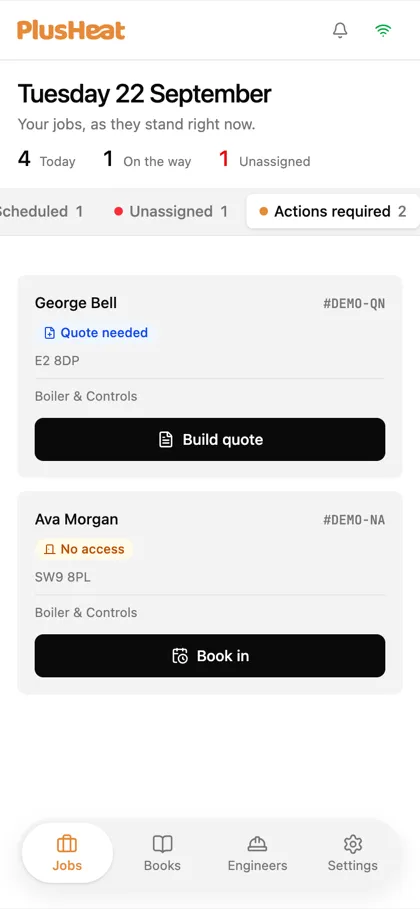
| Actions required | Jobs waiting on you: a quote to build, a no-access to rebook, an approved quote to schedule. Each card carries the one button it needs. | Press the button. |
| With PlusHeat | Jobs that have gone back to PlusHeat — a report filed, a quote submitted, a certificate issued. | Nothing. They come back if they need to. |
Each column header shows its count, and the count is the workload: Unassigned 1 and Actions required 2 are two jobs that will sit there until you touch them.
Reading a card
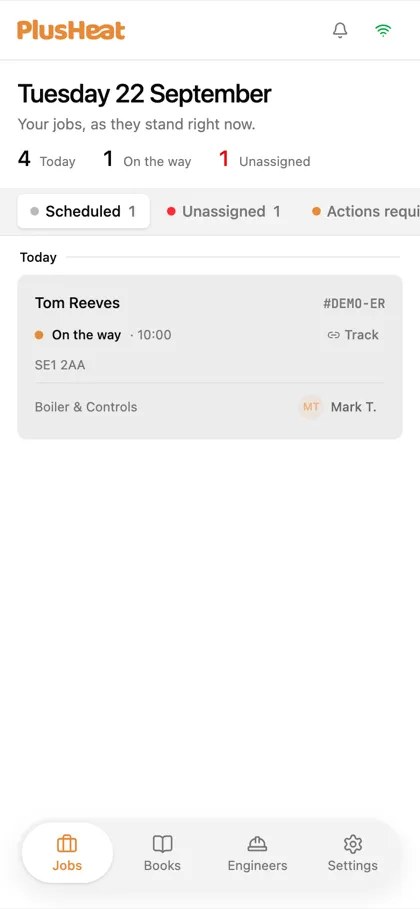
Section titled “Reading a card”- Customer name and the job number (
#…) — the number is what to quote to support. - A status with a coloured dot, and the booked time.
- The postcode.
- The category — Boiler & Controls, Central Heating, Plumbing, Gas Safety.
- The engineer’s initials and name, where someone is on it.
- On a job that’s moving, a Track link — the same live map the customer sees.
Click a card to open the full job: customer, map, timeline, reports, quotes, purchase orders.
The top line
Section titled “The top line”Today’s count, how many engineers are on the way right now, and how many jobs are unassigned. The unassigned figure goes red when it isn’t zero, because that is the one number nobody else will fix for you.
Searching
Section titled “Searching”⌘K — or the search box, top left — finds any job by number, customer or postcode.
On a phone
Section titled “On a phone”The four columns become four tabs. The bar along the bottom moves between Jobs, Books, Engineers and Settings.